
  • 10 Product updates
Adobe InDesign MAX Release:- Export InDesign documents to Adobe Express

Adobe InDesign MAX Release: Generate HTML5 output for the content.

Hello Everyone,We are thrilled to introduce the new Export Content as HTML5 feature in InDesign. With this update, you can now export pages, spreads, or selected objects to HTML5 format with just a few clicks. HTML5 makes your content more accessible and compatible across platforms and boosts both user engagement and SEO! Plus, you have control over how text is exported for optimized web performance. Please try it and let us know what you think. We can’t wait to see how you use this powerful new feature in your projects. Quick and easy steps to export content as an HTML5 Package Go to File > Export. Choose HTML5 from the Save as type (Windows) or Format (macOS) dropdown. Choose Use InDesign Document Name as the Output Filename to keep the same file name, then click Save. In the Export HTML5 Package dialog, choose HTML text tags or HTML SVG tags. Click Export. Your document is now an HTML5 package.  Key Properties from the Publish Online DialogTitle: Used to name the exported folder. Description: Not exported. Pages: All pages included if exporting directly from File > Export > HTML5. Export as: Single: Each page as an individual HTML file, linked to index.html. Spread: Each spread as a single HTML file, linked to index.html. Cover Thumbnail: Included in the HTML5 package. Image Settings: Applied from the Publish Online dialog. Google Analytics: Tag added to index.html if included in the Publish Online dialog. For more details, please click here. We’d love to hear from you!Try out the new Export to HTML5 package feature in InDesign 2025 version 20.0, and let us know your thoughts. Feel free to reach out if you have any questions or need more tips!  If this was helpful, please click the Upvote icon in the top left corner of this post. Your feedback helps us improve the experience. Thank you!

Related products:InDesign
New Innovations in Photoshop Transform Creative Workflows and Deliver More Speed, Precision and Power
The Estée Lauder Companies Partners with Adobe to Scale the Production of Digital Marketing with Firefly Generative AI
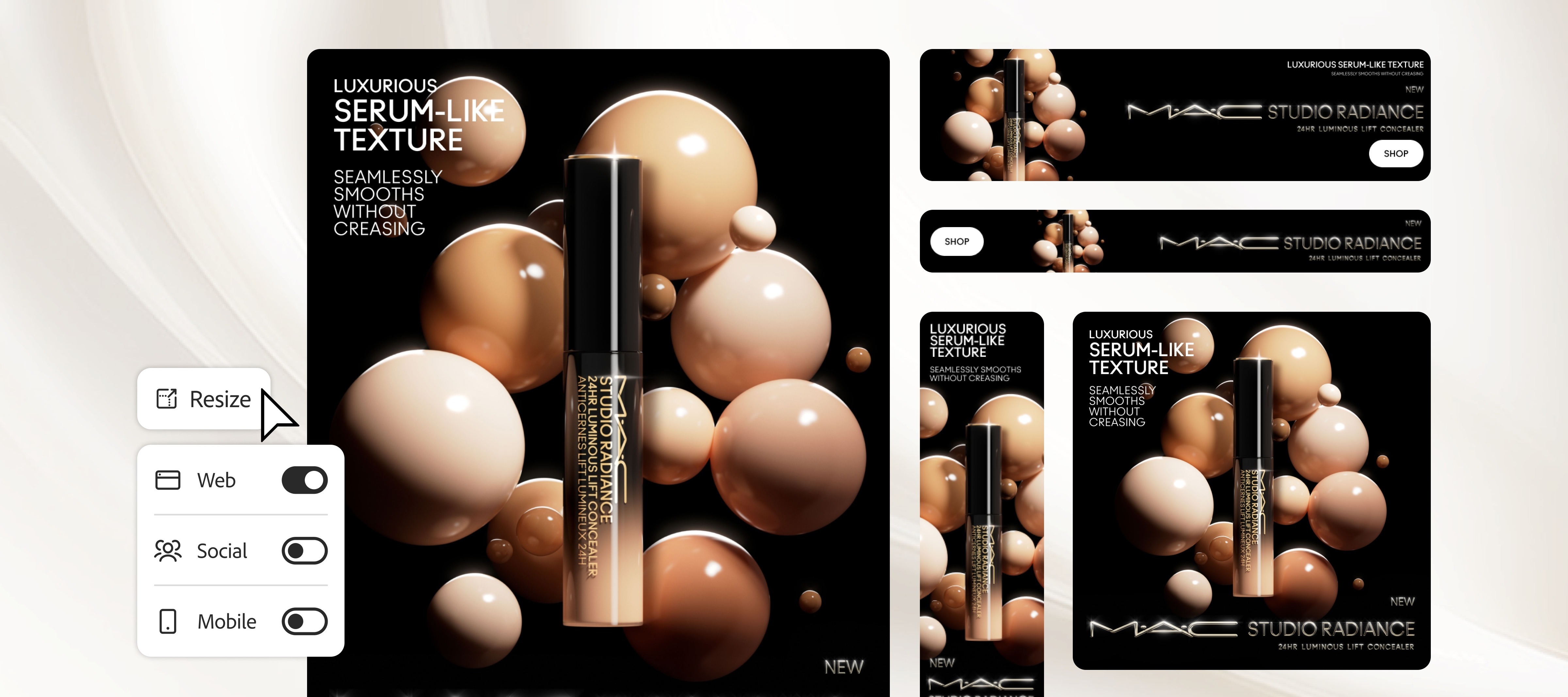
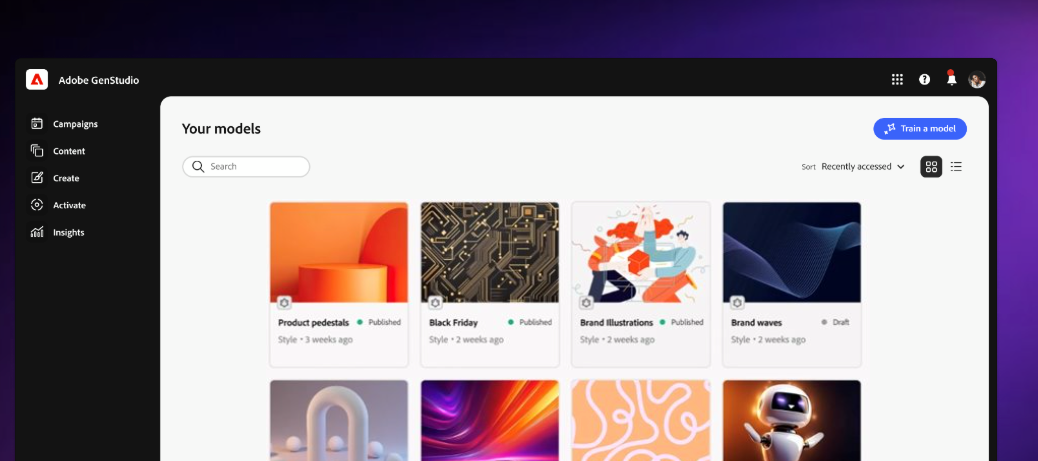
Adobe Firefly Services and Custom Models Unlock On-Brand Content Production at Scale with New Capabilities

What's new in Photoshop v26.6

Hello Photoshop enthusiasts!We’re excited to inform you that the latest version of Photoshop, v26.6, has just been released and it's packed with some fantastic new features and improvements. Whether you are a professional graphic designer, photographer, or just someone who loves editing photos, there is something in this update for everyone. Here’s a quick rundown of what’s new in Photoshop v26.6! 1. Enhanced Object Selection ToolOne of the standout features of Photoshop v26.6 is the enhanced Object Selection Tool. The tool now uses Adobe Sensei AI technology to make more precise selections with a single click. This improvement will save you a ton of time when isolating objects from their backgrounds. Simply drag a rough rectangle or lasso around the object, and let Photoshop do the magic! 2. Sky Replacement ImprovementsThe Sky Replacement feature has also seen a significant upgrade. There are now more sky presets to choose from, and the blending algorithms have been refined to produce more natural-looking results. You can even import your own sky images to create a unique look for your photos. Whether you want a dramatic sunset or a clear blue sky, Photoshop v26.6 has got you covered. 3. Neural Filters ExpansionAdobe has expanded its range of Neural Filters, giving you more creative and practical editing options. The new Depth Blur filter lets you add an impressive depth-of-field effect to any image, mimicking the look of a high-end camera lens. Other new filters like Colorize and Style Transfer have also been added, making it easier to achieve complex effects with minimal effort. 4. Improved Photoshop PerformancePerformance is always a key focus for Adobe and Photoshop v26.6 is no exception. The software now launches faster, files open more quickly, and overall performance has been optimized, especially for users working with large files. This means you can work more efficiently and spend less time waiting for processes to complete. 5. Support for New File FormatsIn v26.6, Photoshop has extended its support for various file formats, including HEIF/HEIC files and the latest versions of RAW formats from new camera models. This ensures that you can maintain the highest image quality and work with the latest technology in the photography industry. These are just a few of the highlights of the new Photoshop v26.6. The update also includes numerous bug fixes and user-requested enhancements to streamline your workflow. We encourage you to dive in and explore all the new features and improvements for yourself.As always, we’d love to hear your feedback! Let us know which new feature you’re most excited about and how it’s impacting your creative process. Happy editing!- The Adobe Photoshop Team 

Related products:Photoshop
We're happy to announce the release of Photoshop 26.1
Create bulleted and numbered lists

Create bulleted and numbered lists

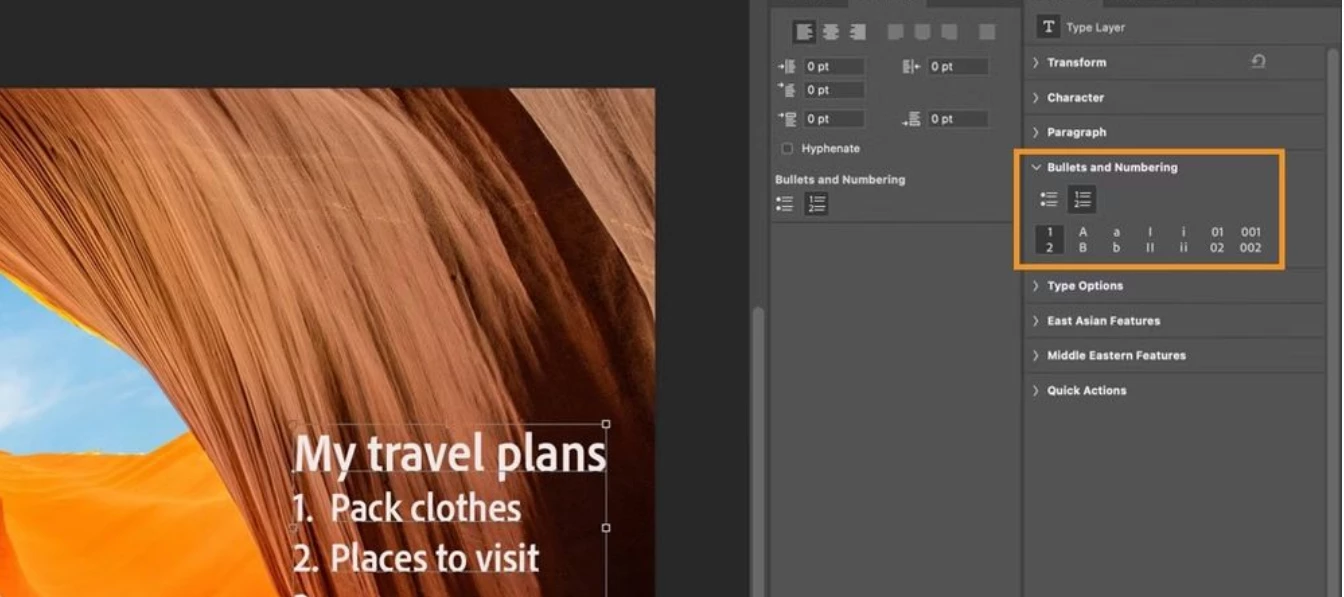
The team is excited to announce that Bullets and Numbers in Ps Desktop has been released in Photoshop  25.11.What is this and how would I use it?Imagine you're working on a design project and want to add some text, maybe it is a list of essential points or a step-by-step guide. You want these lists to function but also be visually appealing. That's where Photoshops Bullets and Numbering feature comes into play.Why is it important?The Type tool is one of the most used tools in Photoshop, and Bullets and Numbering has been one of the most requested features in the Adobe Community.Photoshop customers want a quick easy way to format a paragraph where each paragraph return becomes a bullet or numbered list item.Earlier Photoshop customers were creating bulleted points using glyphs and had to add them manually paragraph by paragraph. We hope with this addition the process will be an easier and more fluid workflow.Select Horizontal Type Tool or Vertical Type Tool in the Tools panel to create a text layer. Select the text layer or place the cursor into the text frame to create a list. Go to Properties panel > Bullets and Numbering and select Bulleted list button or Numbered list button to apply the list style. You can also go to Paragraph panel (Window > Paragraph) and select the Bulleted List button or Numbered List button to apply the list style. To continue the list in the next paragraph, move the insertion point to the end of the list and press Enter or Return. Photoshop uses auto-detection of lists when you create any sequence of lists using the keyboard like 1. or 1) or A. or A) followed by <space>.  You can choose to disable auto-detection of lists. To do so, deselect the Preferences > Type > Automatic detection of Bulleted and Numbered lists while typing preference.Customize bulletsYou can create custom bullets by using the keyboard as follows:* <space> # <space> > <space> + <space>Format the listsUse keyboard shortcuts such as tab or shift + tab to move to the next or previous indentation levels, respectively.We hope you find this addition to Photoshop useful and as always appreciate your feedback and any ideas to improve it.Thanks,Photoshop Product Manager

Related products:Adobe ExpressLightroomPhotoshop
Unlock 3 Months of LinkedIn Premium—Free with Your Adobe Creative Cloud Subscription!